This article explains how to place a new Over the Counter order in Legato Media. OTC orders are used when staff need to manually create an order on behalf of a customer rather than through the vendors API.
Prerequisites
Before starting, make sure:
- You have access to Legato Media
- You are logged in with an account authorized to create OTC orders
- You have the customer and product information needed to complete the order
Step‑by‑Step Instructions
1. Log In to Legato Media
Sign in to the Legato Media application using your internal credentials.
2. Navigate to the Orders screen
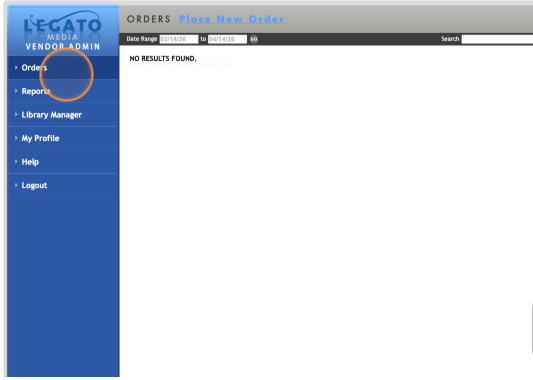
From within Legato Media:
- Locate the Orders link in the left hand navigation
- At the top of the screen click Place New Order
This opens a new order workflow.
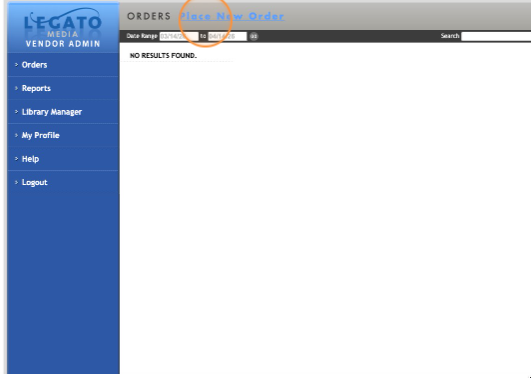
3. Add Product(s) to the Order
Next, add the item(s) being purchased:
- Search for the desired product using either the title or Publisher SKU
- Select the correct title/version
- Specify quantity as needed
- Click Add to add an item to the order
Repeat this step if multiple items are required.
4. Enter Customer Information
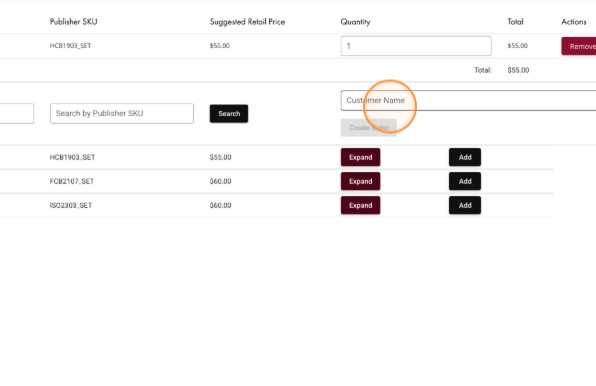
In the customer name section:
- Add the customer’s name
Important: Customer information will be watermarked on the sheet music
5. Review Order Details
Before submitting:
- Confirm customer details are correct
- Verify all products and quantities
Use this step to catch and correct errors before placing the order.
6. Submit the Order
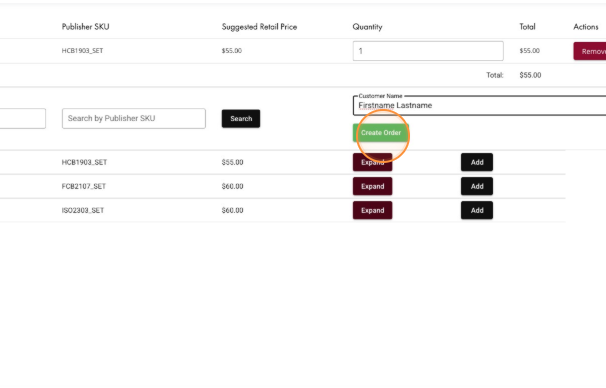
Once everything has been reviewed:
- Submit the order using the Create Order button
After submission, the order should be created successfully in Legato Media and follow standard fulfillment and reporting workflows.
After the Order Is Placed
- The order will appear in order history and reporting
- You can print the item for the customer using the Print All button, or print each part individually
Was this article helpful?
That’s Great!
Thank you for your feedback
Sorry! We couldn't be helpful
Thank you for your feedback
Feedback sent
We appreciate your effort and will try to fix the article